

| LED models | Incandescent models | ||
|---|---|---|---|
| 1615 | 3634 | 5685 | 9410 |
| 1617-PC | 3636 | 7604 | 4465 |
| 1632 | 3637 | 7605 | |
| 1655 | 3650 | 7614 | |
| 3600 | 3655 | 7615 | |
| 3602 | 3656 | 7616 | |
| 3604 | 3657 | 7620 | |
| 3614 | 3658 | 7624 | |
| 3615 | 4755 | 7625 | |
| 3616 | 4765 | 7630 | |
| 3617 | 4555-D | 7631 | |
| 3618 | 4565 | 7632 | |
| 3619 | 5625 | 9510 | |
| 3620 | 5634 | 9515 | |
| 3621 | 5635 | 9710 | |
| 3625 | 5644 | 9715 |

MPCX2 Receiver for use with outdoor x6xx and indoor x7xx scoreboards.

MPCX2 Receiver for use with scoreboards that pre-date x6xx outdoor and x7xx indoor scoreboards. (Boards that have coax input only)
- QUICK START GUIDE ............................................................................................................1
- KEYBOARD FUNCTIONS ........................................................................................................3
- GREETING SCREEN ...........................................................................................................3
- MAIN SCREEN ....................................................................................................................4
- PENALTY SCREEN ..............................................................................................................5
- SET TIME SCREEN ..............................................................................................................6
- OPTIONS MENU .......................................................................................................................7
- TROUBLESHOOTING CHART ............................................................................................15
- Press ON/OFF — The control will display a greeting while it establishes communications with its receiver(s). (Up to 20 seconds).
Display shows:
   MPCX2 v01.00
   2.4 GHz
Then:
Scanning- Next the display will show the period, the time status and the score.
Display shows:
   Q: 1  0.0  OFF
Home: 0 Gst: 0- Press OPTIONS — The control will display:
   Clear Scoreboard
Press (+)- Press (+) to clear the scoreboard data. The control will display:
   Scoreboard
Cleared- Press PERIOD / SCORE to go to the main screen.
Display shows:
   Q: 1  0.0  OFF
Home: 0 Gst: 0- Press SET TIME to set the time (Minutes).
Display shows:
   Set Time:
▶ 00:00.0 DN- Use the "+" or "−" keys to enter the desired number of minutes and the "Set Time" button to advance the cursor.
Display shows:
   Set Time:
▶ 12:00.0 DN- Press PERIOD / SCORE to return to the main screen.
Display shows:
   Q: 1  12:00  OFF
   Home: 0  Gst: 0
You are now ready for the game to begin.
Press TIME ON — The control will display:
Q: 1  12:00  ON
Home: 0 Gst: 0Press TIME OFF — The control will display:
Q: 1  11:51  OFF
Home: 0 Gst: 0Press PERIOD / SCORE, then HOME or GUESTS, then +
Display shows:
Q: 1  11:51  OFF
Home: 2  Gst:  3
Please consult the following sections of this manual for more details, functions, and features
GREETING
When the control is Powered ON, the greeting showing the type of control, the software version, and the frequency it is broadcasting. It will then display scanning for the remaining time until the control establishes communications with its receiver(s). (May take up to 20 seconds)
Accessed by pressing: ON/OFF
Display shows:
MPCX2 v01.00
2.4 GHz
Then:
ScanningThen:
Q: 0  0.0  OFF
Home:    Gst:
ON/OFF — When you are done using the control turn it OFF to conserve batteries by holding down the OFF key for 2 seconds.
`
Q: 0 0.0 OFF
Home: Gst:
`MAIN
The main screen shows the Period, the Timer Status, and the Scores. You must use this screen if you want to change the Period or Scores. Press PERIOD / SCORE any time to return to this screen. The cursor indicates the currently selected function. Use the HOME, GUESTS, or PERIOD / SCORE keys to select the function, then, use the "+" or "−" keys to change its value and send it to the scoreboard. You should keep this screen displayed during the game.
Accessed by pressing: PERIOD / SCORE
Display:
Q: 1  0.0  OFF
Home:    Gst:
PERIOD / SCORE — Selects the main screen. From this screen use the "+" or "−" keys to change the period.
Display:
Q: 1  0.0  OFF
Home: 0  Gst: 0
HOME — Use the "Home" or "Guests" keys to select the team whose data you want to change.
Display (Home selected):
Q: 1  0.0  OFF
Home: 0  Gst: 0
       ‾
GUESTS — Display (Guests selected):
Q: 1  0.0  OFF
Home: 0  Gst: 0
              ‾
+ / − — Then use the "+" or "−" keys to change the data for the selected feature.
Display:
Q: 1  0.0  OFF
Home: 0  Gst:  1
TIME ON — Turns the time ON.
Display:
Q: 1  8:15  ON
Home: 0  Gst: 1
TIME OFF — Turns the time OFF.
Display:
Q: 1  8:10  OFF
Home: 0  Gst: 1
HORN — Sounds the horn.
SHOTS / PENALTY
The Shots screen displays the current Home and Guest Shots on Goal and allows you to update these values. Use the HOME, or GUESTS keys to select the team. The cursor indicates the selected team. Then use the "+" or "−" keys to change its value and send it to the scoreboard.
Accessed by pressing: SHOTS / PENALTY
- Pressing the SHOTS / PENALTY key selects the Shots On Goal screen. Use the "Home" or "Guests" keys to select the team whose data you want to change. Then use the "+" or "−" keys to change the data.
Display:
  Shots On Goal
Home: Guest: 1- Pressing SHOTS / PENALTY a second time selects the Penalty screen. Use the "Home" or "Guests" keys to select the team whose data you want to change. Then use the "+" or "−" keys to change the data.
Display:
  Team Penalties
Home: Guest: 1SET TIME
This screen is for setting the time. (Timer must be stopped). The cursor indicates the Minutes, Seconds, or Tenths of Seconds as being selected. Use the SET TIME key to step to the desired element of time, then, use the "+" or "−" keys to change its value and send it to the scoreboard. (Hold down the "+" or "−" keys for fast advance).
Accessed by pressing: SET TIME
Display:
Set Time:
00:00.0 DN- Press SET TIME — Allows you to set the time (Minutes). Use the "+" or "−" keys to enter the desired number of minutes.
Display (cursor on minutes):
   Set Time:
▶ 00:00.0 DN- Press SET TIME again to set the Seconds. Use the "+" and "−" keys to enter the desired number of seconds.
Display (cursor on seconds):
   Set Time:
   00:00.0  DN
‾‾- Press SET TIME again to set the Tenths of a Second. Use the "+" and "−" keys to enter the desired number of tenths of a second.
Display (cursor on tenths):
   Set Time:
   00:00.0  DN
‾Several option settings are available to fine tune the scoreboard system to your needs. These settings are saved in the control. They are remembered even if the control is turned OFF or the batteries removed. When a control turns ON the scoreboard, these settings are sent to the scoreboard and are used to define how it operates. This allows each coach or group to have their own control with its unique option choices, thus eliminating the need to set up the options every time the scoreboard is used. For example, Brightness (Baseball – day time) (Soccer – night time).
It is also possible to use more than one control to operate the scoreboard. For instance, the Time can be controlled by one person while someone else operates the rest of the scoreboard with another control.
The options key can be used to access the following features. Each press of the options key moves you to the next option screen.
OPTIONS
Display:
Clear Scoreboard
Press(+)
Allows you to clear the scoreboard data.
Display:
Edit ETN
Press(+)
Allows you to edit the Electronic Team Name for both Home and Guest.
Display:
Guests ETN
Press (+)
Home ETN
Press (+)Display:
Home ETN
_
Use the "+" to go increment the alphabet and the "−" key to decrement the alphabet. Use the "Options" button to advance the cursor.
Display:
Time Up/Down
(+)Up    (-)Down
Allows you to set the direction the timer will count.
Display:
Brightness
(+)HIGH  (-)LOW
Allows you to select the Brightness Level of the scoreboard. (High or Low)
Display:
Auto Horn
(+)On    (-)Off
Allows you to enable or disable the automatic horn. (Sounds for about 4 seconds when time has expired).
Display:
Set Time of Day
Press (+)
Turns the control OFF and blanks all scoreboard functions except Time. Uses the displayed time as the set time if it is a valid Time Of Day. Otherwise blanks the entire scoreboard.
Display:
Battery Level
L>>>>>>>>>>>>H
Reports the condition of the batteries in the control.
Display:
Signal Strength
L>>>>>>>>>>>>H
Allows you to check signal strength when connected to a receiver. Used as an indication of reliability of communications. Affected by distance, battery condition, obstructions and signal interference.
Display:
Enter Code to
Change Settings
This menu option allows you to access settings that affect how the control operates. Generally, these settings need not be changed and should only be changed by an experienced operator or under direction from the Nevco Service Department.
Press the following key sequence:
- a. Segment timer - (Segment time) (+) (-) (Auto Horn)
- b. Shot Clock/Pitch Time/Delay Of Game - (Reset 1) (+) (-) (Reset 2)
to gain access to the following additional menu items.
Or
Press the OPTIONS key to return to the main screen.
Display:
Link Menu
Press (+)
This menu option allows the user to add a receiver ID, delete a receiver ID, and to view the status of which ID's are programmed and enabled or disabled. Press the (+) button to scroll through the different link menus.
Please refer to sections "Mating a New Control to Receiver(s)" and "Adding, Deleting or Enabling/Disabling Receiver ID's" for detailed instructions.
The Network Analyzer allows the user to see the number of receivers connected and see the integrity of the network in percentage.
| Menu Option | Display |
|---|---|
| Add a Rec ID | Add a Rec ID / Press (+) |
| Delete a Rec ID | Delete a Rec ID / Press (+) |
| View Rec ID's | View Rec ID's / Press (+) |
| Network Analyzer | Network Analyzer / Press (+) |
Display:
Scoreboard ModelThe next press of the options key will display one of the following screens. It indicates which of the scoreboard model series the control is currently configured to operate. Use the "+" key to toggle thru the scoreboard models. Press the OPTIONS key again to exit the options routine. The last scoreboard series displayed will become the new control configuration.
Refer to the Scoreboard Model table found below for the appropriate scoreboard model to be used with your scoreboard.
Before using the MPCX2 control it must be mated to the receiver(s) and set for the model of scoreboard that you wish to operate.
- Step 1. Record the receiver(s) ID's located on the receiver box before installation for future reference. Multiple receivers can be used with multiple controllers all on the same network. (The serial number is in the battery door on a segment timer)
Record Receiver ID's Here
- Step 2. Install the receiver(s) into the scoreboard and power up the receiver(s) that are to be used.
- a. Standard Installation – Uses the RJ12 output of the receiver.
- b. Rain Type Box Installation – Uses the coax output of the receiver and a 9VDC power supply.
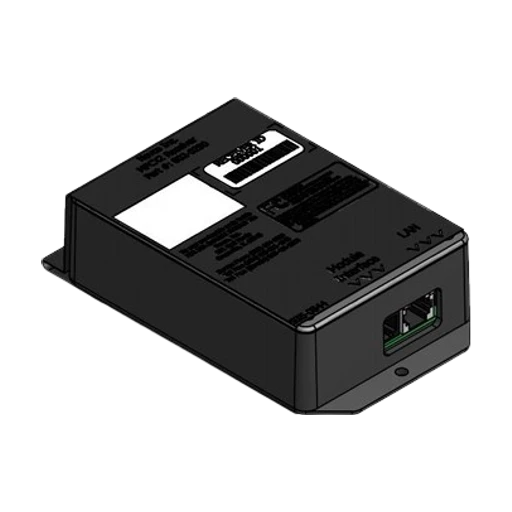
Standard Type
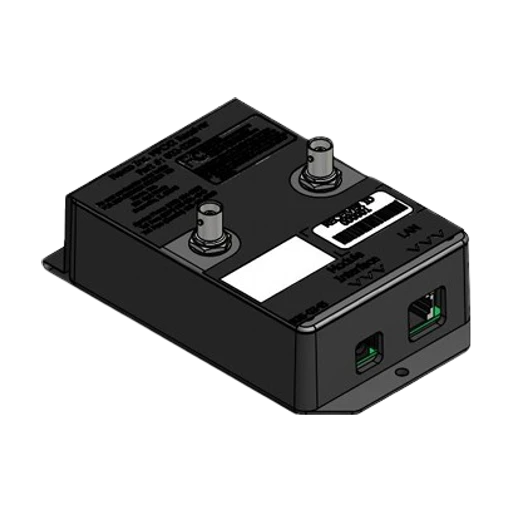
Coax Input Type
- Step 3. Wait approximately 15 seconds after the receiver has been turned on before turning on the MPCX2 controller in order to allow enough time for the receiver to be initialized.
- Step 4. Insert the batteries included with the MPCX2 control or turn the control ON by pressing ON/OFF
The display will read:
   Enter Rec ID:
000000- Step 5. Enter in the receiver ID's located on the receiver box using the controller keypad buttons (Options) (NEXT) to move the cursor and (+) or (−) to increment or decrement each digit.
When done press the (BACK) button in the lower left corner.
- Step 6. The screen will then prompt with:
   Reset Now?
(+)NOW (-)LATER- Step 7. Pressing (+) will reset the controller. Pressing (−) will allow additional receiver ID's to be entered into the controller and will display the message:
   Add Another?
(+)YES (-)NO- Step 8. If additional receivers are to be added then select (+) and repeat steps 5 through 6. If additional receivers do not need to be added then select (−) and the controller will be reset.
This procedure is not necessary if you have one of the following models:
1500, 1510, 1530, 1535, 1550, 1600, 1610, 1630, 1635, 1650, 1000, 1010, 1030, 1035, 3500, 3502, 3504, 3514, 3515, 3516, 3520, 3525, 3534, 3550, 1632, 9605, 9505, 9715, 9515, 3400, 3402, 3404, 3414, 3415, 3416, 3425, 3434, 9405, 9550, SCD-5, SCD-7, S60-LED, S60, SCD-4.
And for any sport except Soccer: 2700, 2710, 2715, 2740, 2750, 2760, 2770, 2775, 2600, 2610, 2615, 2640, 2650, 2670, 2675, 2500-D, 2500, 2500-A4-D, 2500-A4, 2540, 2540-A4, 2550-D, 2550, 2560, 200, 230, 9510, 9715, 9515, 9710, 2400, 2400-A4, 2440, 2440-A4, 2450, 2460, 9410
- Step 1. Turn the control on by pressing ON/OFF
- Step 2. Press the Options button until the display reads:
   Enter Code to
Change Settings- Step 3. Enter the "Code" with the buttons in the sequence: HOME, (+), (−), GUESTS
- a. Segment timer - (Segment time) (+) (-) (Auto Horn)
- b. Shot Clock/Pitch Time/Delay Of Game - (Reset 1) (+) (-) (Reset 2)
- Step 4. Continue pressing the Options button until the display reads:
   Scoreboard Model
(+)- Step 5. Press the (+) key to select the scoreboard model shown in the table below.
- Step 6. Press the Options key to exit the menu.
Both multiple controllers and receivers can be on the same network.
For example, one person with a controller can control Game Time and another person with a separate controller can control Game Score of the same game on the same scoreboard. Multiple controllers can be used for any combination of game data.
If a second controller is powered on after the first powered on controller has been initialized, then the second controller will be configured with the same Scoreboard Model described in the "Setting the Control for Your Model of Scoreboard" section.
Multiple receivers can be used on the same network. One example could be separate scoreboards for the same game or in the case of basketball one receiver controls the scoreboard while other receiver(s) control the shot clock(s).
| MPCX2 Control | Scoreboard Model | Screen to Select |
|---|---|---|
| Football | 3500, 3502, 3504, 3514, 3515, 3516, 3520, 3525, 3534, 3550, 1632, 9605, 9715, 9505, 9515, 3400, 3402, 3404, 3414, 3415, 3416, 3425, 3434, 9405 | Type A (+) |
| 7504, 7505, 7516, 7520, 7524, 7525, 7530, 9505, 9515, 7404, 7405, 7416, 7424, 7425, 7430, 9405, 3602, 3604, 3614, 3615, 3616, 3617, 3618, 3619, 3620, 3621, 3625, 3634, 3650, 3655, 3656, 7604, 7614, 7624, 7605, 7615, 7625, 7616, 7620, 7630, 7631, 7632 | Type B (+) | |
| All 36XX, 76XX, and 86XX boards | X6XX (+) | |
| 3680, 3685, 3688, 7680, 7685 (Reorders Intelligent Caption to Ball On, Down, To Go, Quarter) | X6XX Legacy (+) | |
| Soccer | 1515, 9505, 9515, 1615, 1632, 9605, 9715, 1415 | Type A (+) |
| 1520, 1525, 9505, 9515, 1620, 1625, 9605, 9715, 1020, 1025, 9405, 9410 | Type B (+) | |
| 3502, 3504, 3514, 3515, 3516, 3520, 3525, 3534, 3550, 3555, 9605, 9505, 9715, 9515, 3402, 3404, 3414, 3415, 3416, 3425, 3434, 3455, 9405 | Type C (+) | |
| 7504, 7524, 9505, 9515, 9605, 9715, 7404, 7405, 7424 | Type D (+) | |
| 7604, 7605, 7614, 7615, 7616, 7620, 7624, 7625, 7630, 7631, 7632, 3600, 3602, 3604, 3614, 3615, 3616, 3617, 3618, 3619, 3620, 3621, 3625, 3634, 3650, 3655, 7505, 7516, 7520, 7525, 7530, 9505, 9515, 9715, 7405, 7416, 7425, 7430, 9405, 9410, 3680, 3685, 3688, 7680, 7685, 8601, 8602 | Type E (+) Supports Intelligent Captions | |
| 200, 230, 24xx, 25xx, 26xx, 27xx, 9510, 9515, 9710, 9715 | Type F (+) | |
| 3656, 3657 | Type G (+) Supports Intelligent Captions | |
| 4455, 4465, 4755, 4555, 4565, 4765, 9710, 9715 | Type H (+) | |
| SCD / DGT / PCD | SCD-5, SCD-7A, SCD-T7A, SSC-7, SSC-T5, SSC-T9, S60-LED, S60, SCD-4 | Shot Clock (+) |
| DGT-6 | Delay Of Game (+) | |
| DGT-5, DGT-2, 3020 | Legacy DOG (+) | |
| SEG-14, SEG-18 | Segment Timer (+) | |
| 9520, 9620 | Pitch Timer (+) | |
| Tennis | 9550 Set one control to each of 6 courts => | Standard |
| 9650 Set one control to each of 6 courts => | Current Court: 1 | |
| 9651B | New Court: 2 | |
| 9652B |
| MPCX2 Control | Scoreboard Model | Screen to Select |
|---|---|---|
| Baseball | 1000, 1010, 1030, 1035, 1500, 1510, 1530, 1535, 1550 | Standard (+) |
| 1003, 1006, 1503, 1506, 1508, 1540, 1603, 1604, 1606, 1608, 1609 | Score by Inn (+) | |
| 1020, 1025, 1515, 1520, 1525, 9505, 9515, 9605, 9715 | With Timer (+) | |
| 1615, 1620, 1625, 1632, 3656, 3680, 3685, 3688, 7616, 7680, 7685, 8601, 8602 | X6XX Timer (+) | |
| 1600, 1609, 1610, 1630, 1635, 1640, 1650, 3656, 3680, 3685, 3688, 7680, 7685, 8601, 8602 | X6XX Standard (+) | |
| 1603, 1604, 1606, 1608, 1609 | X6XX by Inn | |
| Pitch Count | PCD-(A, 08, 10, 16, 18) With Models 1000, 1010, 1030, 1035, 1500, 1510, 1530, 1535, 1550 | Standard (+) |
| PCD-(A, 08, 10, 16, 18) With Models 1003, 1006, 1503, 1506, 1508, 1540, 1603, 1604, 1606, 1608, 1609 | Score by Inn (+) | |
| PCD-(A, 08, 10, 16, 18) With Models 1015, 1020, 1025, 1515, 1520, 1525, 9505, 9515, 9605, 9715 | With Timer (+) | |
| PCD-(A, 08, 10, 16, 18) With Models 1615, 1620, 1625, 1632, 3656, 3680, 3685, 3688, 7616, 7680, 7685 | X6XX Timer (+) | |
| PCD-(A, 08, 10, 16, 18) With Models 1600, 1609, 1610, 1630, 1635, 1640, 1650, 3600, 3656, 3680, 3685, 3688, 7680, 7685 | X6XX Standard (+) | |
| Basketball, Volleyball or Wrestling | No setting required | Type A (+) |
| Hockey | No setting required | Type A (+) |
| All 36XX, 56XX and 76XX | X6XX (+) |
| MPCX2 Control | Scoreboard Model | Screen to Select |
|---|---|---|
| Segment Timer | 27xx, 26xx, 25xx, SEG-14, SEG-18, 9710, 9510, 200, 230, SSC-7, SSC-T5, SSC-T9, SCD-7A, SCD-T7A, SCD-T5, SCD-5, SCD-4, 9715, 9515, S60-LED, S60, 4755, 4555-D, 24xx, 9410 | Type A (+) |
| 3500, 3502, 3504, 3514, 3515, 3516, 3520, 3525, 3534, 3550, 36xx, 1632, 9605, 9505, DGT-6, DGT-5, 9405, 3020, 3400, 3402, 3414, 3415, 3416, 3425, 3434, 3455, 9515, 9715 | Type B (+) | |
| 36xx, 76xx, 7504, 7505, 7516, 7520, 7524, 7525, 7530, 9605, 9505, DGT-6, DGT-5, 9405, 7404, 7405, 7416, 7424, 7425, 7430, DGT-2, 9515, 9715 | Type C (+) | |
| 1520, 1525, 1515, 9505, 1620, 1625, 1615, 9605, 9715, 9405, 9515 | Type D (+) | |
| SEG-14 and SEG-18 Segment Time only | Type E (+) | |
| SEG-14 and SEG-18 Segment Number only | Type F (+) | |
| All X6XX boards with timers | X6XX (+) |
| Problem | Cause | Solution |
|---|---|---|
| Scoreboard will not turn ON when control is turned ON | Receiver not working or receiver/scoreboard not powered up | Cycle power to receiver/scoreboard |
| Control signal weak — Battery level low | Replace batteries | |
| Control continues to search after an unusually long time | Check signal strength (see Options menu) — Control in a poor location | Make sure the control is in clear line of sight of the scoreboard |
| Out of Range | Move closer to scoreboard | |
| Data won't change on control | Control is linked to extra unwanted receivers or wanted receivers are not powered ON. | Use the Options Menu to check the receivers the control is linked to and the receivers on its list. |
| Control display shows incorrect information | Control is not linked to this scoreboard | Find and use the control for this scoreboard. |
| Link the control to this scoreboard or group (see Options Menu) | ||
| Cannot turn the time ON | Didn't sync up | Power control OFF, then ON |
| Control is ON but scoreboard/timer is OFF (data is changing on control) | No power to scoreboard | Check all switches, breakers, and fuses |
| Bad connection between Receiver and scoreboard module | Check all cables and connections | |
| Scoreboard/timer is ON but does not respond to control | Control and receiver are not communicating | Turn control OFF, then ON to establish communications |
| My control will not operate scoreboard (Out of Range) | Poor connection with bad line of sight to the scoreboard or distance is too great. | Return to a closer location with direct line of sight and verify Signal Strength and run Network Analyzer to determine and document connection integrity. If that does not work then cycle power to controller. |
| I cannot set the time | The time is running | Stop the time first |
| Cannot turn the time ON | Time at 0.0 and set to count down | Set some time on the clock |
| Scoreboard is ON – Control is OFF | Batteries were removed while scoreboard ON | Install batteries -- power ON |
| Batteries were completely discharged while scoreboard is on | Cycle power at scoreboard | |
| Not all controls of a multi-control scoreboard system will operate the scoreboard | Multiple controllers were powered on at the same time and not all connected | Power cycle the controllers that are not operating the scoreboard. |
| Scoreboard connected to MPCX2 is displaying data in the wrong places, incorrect data, or horn constantly sounds. | Control is not configured for correct scoreboard model series | Reconfigure the control (see options menu) |
If the problem persists please contact the Nevco Service Department.
800-851-4040 or https://support.nevco.com/contact/
The receiver has a red status LED next to the RJ12 and Ethernet jack. It can be used to diagnose the status of the MPCX2 receiver.
| LED Status | MPCX2 Connection Status |
|---|---|
| Solid On | The receiver is powered on, but a connection attempt has not yet been made, or a connection attempt was unsuccessful. |
| Blinking Fast (multiple times a second) | The receiver is in the network and connected. The receiver may appear to not be blinking due to it blinking very quickly. If the receiver is connected to Scorbitz through the Ethernet jack, then it will blink more visibly. |
| Blinking Slow (approximately once a second) | The receiver is not connected but connection attempts are being made. Each slow blink is a connection attempt. If the receiver is intended for the network and it is flashing slowly but never connects then verify that the receiver list in the MPCX2 control is correct. |
| Solid Off | The receiver is not powered on. It is also possible that the receiver is powered on but for some reason the LED has been turned off. If this is suspected to be the case then cycle power to the receiver and the LED should turn on after a brief delay. |
MPCX2 receiver status LED
On powerup the receiver connected to the OCM will identify itself by flashing from the most significant 2 digit numbers to the least significant 2 digit numbers. For example, a receiver with ID 123456 will flash 12, 34, and then 56 on power up. This is used to distinguish which X2 receiver is connected to which OCM's without having to open up the scoreboard.
MPCX2 Control:
- Small and light weight (fits in or clips to pocket)
- Electronic Team Name and Caption Support
- Tactile confirmation of key pressed
- High visibility transflective display
- Convenient wireless operation
- Built in wireless signal strength meter
- Power conservation circuitry
- Built in battery meter
- Long battery life
- Uses inexpensive, readily available AA batteries
- Sealed keyboard
- No slip grip
- Ergonomic single hand operation
- Internal antenna
- Mate multiple controls to same scoreboard
- Operate multiple scoreboards
- Retrofits to existing wired installations
Size:
Approximately 3¼" x 5½" x ⁷⁄₈"
Weight:
5½ oz. (including batteries)
Keypad:
12 keys
Display:
32 character LCD
Power requirements:
Two AA cells (included)
Operating distance:
1000 feet (Clear line of sight)
Receiver Output:
One BNC connector (2 loads with up to 1000 ft. coax each)
Operating temperature:
0°F to 150°F
Certifications:
- FCC part 15 Class B
- CE
- RoHS