
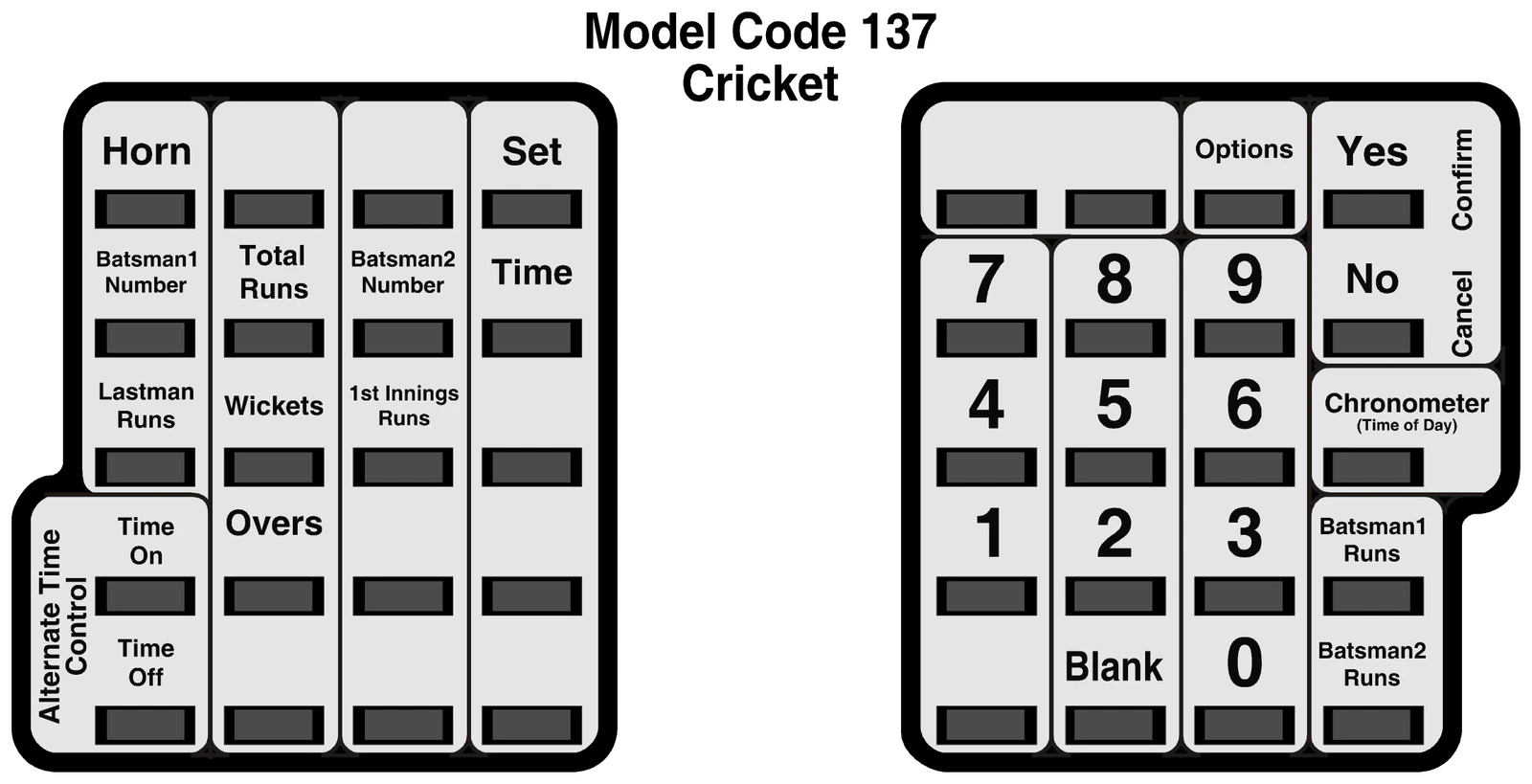
Model Code 137 — Cricket
Nevco Scoreboard Company 800-851-4040 USA / 800-461-8550 Canada
www.nevco.com
LED models:
- 9560
- 9660
When you turn the control on, the traveling display prompts you to "START WHERE TURNED OFF LAST?", "GO TO A BOOKMARK?", or "ENTER YOUR MODEL CODE". Answer YES, NO, or enter the 3 character model code on the overlay.
If a power failure happens during a game, press YES to resume from the point the power failed. The control can detect when power is failing and save the current data. (If the time was running when the power failed it will continue running as soon as power is restored).
A bookmark makes a quick efficient way to start a new game or practice drill. If a bookmark has been saved for this activity, answer YES to the bookmark question. The control will prompt for the "BOOKMARK #". Press the number of the bookmark you want to use (1 to 5). The control will load the configuration and data it had in it at the time the bookmark was saved.
To start a new game or procedure, be sure the proper overlay is installed on top of the control. Enter the 3 character model code located near the top center of the overlay.
If you answer YES:
The control will prompt [ SELECT A GROUP ] then display the first group that is set up in the control. To see the next group name, press NO. When the desired group name is being displayed press YES.
The control will ask "DO YOU WANT TO SWITCH TO BRIGHT?" Press NO to use the default (dim) mode, or YES to switch the scoreboard to the bright mode (for daytime use).
The Control will display [ \ READY \ ] and the scoreboard(s) will turn on.
With the scoreboard on, and the control showing [ \ READY \ ]
You are ready for the game to begin.
The Total Runs, Batsman 1 Runs, Batsman 2 Runs, Lastman Runs, 1st Innings Runs, Wickets, and Overs are all additive; just press the function key first, then the number to increment by.
The Batsman 1 Number and Batsman 2 Number are direct entry functions; press the function key first, then the player's number (0 to 99).
Please consult the following sections of this manual for more details, functions, and features.
Use the YES key to respond to questions and to confirm data input.
Use the NO key to respond to questions and to cancel an operation.
Use the SET key ahead of a function key to initiate the direct entry mode or to change the settings in OPTIONS, CHRONOMETER, and TIME OUT TIMER, or to set the TIME, and other features. (For more details see the description for the function.)
Press the OPTIONS key to see a scrolling report of the current system settings.
Press SET then OPTIONS to change the system configuration.
Pressing the CHRONOMETER key will cause the Time of Day to be displayed on the control.
Pressing SET, then CHRONOMETER will enter the set up mode. The questions asked will depend on your system and its current configuration.
Questions that the control may ask include:
[ SET HH:MM:SS ]
(Allows the control to be turned off, disconnected, and stored away in a safe location, while the scoreboard or auxiliary time display, or both, continues to display a running "time of day" clock.)
(Auxiliary time display only)
Follow the prompts.
Press TIME ON To start the main time.
Press TIME OFF to stop the main time.
Press Batsman 1 Number to display the uniform number for Batsman 1.
The control might display [ BATSMAN1 45 ].
When another player takes over the position of Batsman1, simply enter his uniform number, or press NO or YES or another function key to abort and leave the number unchanged.
Batsman 2 Number works the same way.
Press Total Runs to enter the Total Runs ADD mode.
The control might prompt [ TOTAL RUNS 325+ ]. In this example the current Total Runs is 325 and the "+" indicates that the control is ready to add to the total runs. Enter a single digit number or press NO or YES or another function key to abort and leave the total runs unchanged.
Lastman Runs works the same way.
1st Innings Runs works the same way.
Batsman 1 Runs works the same way.
Batsman 2 Runs works the same way.
Press Overs to enter the Overs ADD mode.
The control might prompt [ OVERS 25+ ]. In this example the current Overs is 25 and the "+" indicates that the control is ready to add to the Overs. Enter a single digit number or press NO or YES or another function key to abort and leave the total runs unchanged.
Press OWickets to enter the Wickets ADD mode.
The control might prompt [ WICKETS 5+ ]. In this example the current Wickets is 5 and the "+" indicates that the control is ready to add to the Wickets. Enter a single digit number or press NO or YES or another function key to abort and leave the total runs unchanged.
Many options are available for modifying the way the scoreboard system works. The questions the control will ask and their order depends on the current system and settings. Pressing the OPTIONS key starts a scrolling report of the current system settings. This report will continue to repeat until a key is pressed. To change a setting, press SET OPTIONS and use the YES (confirm) and NO (cancel) keys to work your way through a series of questions that is based on your system and available options. When all questions have been asked, the control returns to normal operating mode.
| Question | Answer | Result |
|---|---|---|
| Do You Have An Auxiliary Time Display Connected? (this question may not always be asked)* | Y | (proceed to next question) |
| N | Next Available Question | |
| Switch to (Dim or Bright)? | Y | Changes brightness level of Scoreboard |
| N | Next Available Question | |
| Use Aux Timer? | Y | Aux Timer To Count Down? |
| N | Next Available Question | |
| Aux Timer To Count Down? | Y | Start and Stop with Hand Held Switch? |
| N | Start and Stop with Hand Held Switch? | |
| Start and Stop with Hand Held Switch? (Count Down) | Y | SET HH:MM:SS → Display Aux Timer on Auxiliary Time Display? ** |
| N | (same path) | |
| Start and Stop with Hand Held Switch? (Count Up) | Y | SET MM:SS |
| N | (same path) | |
| Display Aux Timer on Auxiliary Time Display? ** | Y | |
| N | ||
| Display Chronometer on Auxiliary Time Display ** | Y | |
| N | Next Available Question | |
| Set a Bookmark? | Y | Bookmark #? |
| N | Normal Operation Mode |
The control will need to know if an auxiliary time display is connected as part of your system. The Auxiliary Time Display is used to display time (Main Time, Auxiliary Time or Time of Day). Auxiliary Time Display models include: 9410, 9510, 9405 and 9505.
OR
Answering YES will toggle the brightness level of the scoreboard.
OR
OR
The control has a built in auxiliary timer that can be used for many purposes. It can be configured to count up or down and it can run continuously or only when the main time is running. It can be displayed on the control by pressing the time key twice in succession. It can also be configured to display on an auxiliary time display if one is part of your system. Some uses for the auxiliary timer include timing field or facility usage, or it can be used to determining how far into a game a certain event happened.
Answering YES will setup the timer to count down (99 hours: 59 minutes: 59 seconds maximum).
Answering NO will setup the timer to count up (59 minutes: 59 seconds maximum).
Answering YES will setup the timer to start and stop with the action of the same switch that controls the main time.
Answering NO will setup the timer to run continuously regardless of the switch position.
Answering YES will cause the aux time to be displayed on the auxiliary time display.
Answering NO will cause the auxiliary time display to continue displaying the main time or the time of day.
Answering YES will cause the time of day to be displayed on the auxiliary time display.
Answering NO will allow the auxiliary time display to continue without change.
A bookmark is like a picture or snapshot of all the data and configuration settings in the control. When you go to a bookmark, the control is restored to where it was at the time the bookmark was saved.
Bookmarks can be edited by going to the bookmark, making the changes needed, then saving the bookmark again using the same bookmark number or a different one.
Five separate bookmarks are available and each can be reused as desired.
If you try to save to a used bookmark, you will be warned and given a chance to abort the procedure.
| Problem | Cause | Solution |
|---|---|---|
| Cannot Save a Bookmark | Time is running | Turn time off before saving a bookmark |
| Cannot subtract from score | Score keys will add only | Use SET then score key and enter the correct score directly |
| Aux time is displayed on the auxiliary time display, but it is not counting | Hours and minutes are being displayed. The display will change only once each minute | Minutes and seconds will be displayed during the last hour of remaining time |
| When I enter the model code, I get the message "MODEL CODE IS INVALID". | Control does not recognize this model code. Requires MPC-6 Rev. R3.1 or later or MPCW-6 Rev. R3.1 or later. Use model code 301 to check revision number. | Make sure you are using the correct control. Contact NEVCO for a new control or a revision update. |
If the problem persists please contact the Nevco Service Department.
800-851-4040
ALTERNATE TIME CONTROL SWITCHES (keys): Located on the keypad, these 2 keys, TIME ON and TIME OFF, may be used instead of the Hand Held Time Control Switch.
AUTO HORN: Sounds for a minimum of 2 seconds when the main time has expired or reached the stop time. (Can be disabled from the control)
AUX TIMER: An auxiliary timer, separate from the main timer, that can be configured to count up or down and to start and stop with the time control switch or run continuously. It can be viewed on the control (press the time key twice) or on an AUXILIARY TIME DISPLAY. Some uses for the aux timer include timing field or facility usage, or determining how far into a game a certain event happened.
AUXILIARY TIME DISPLAY: Consisting only of a timer, it can display the main time, the AUX TIME or the Chronometer (Time of Day Clock). Auxiliary Time Display models include: 9410, 9510, 9405 and 9505.
BATTERY: Battery powered memory saves the settings and data in the control in case of power failure. It also maintains the accuracy of the CHRONOMETER when the control is unplugged.
BEEPER: Confirms each key press and alerts operator when a special event such as time expired or an Entry Error has occurred.
BOOKMARK: Saves the current control settings and data so it can be easily recalled later. (5 Bookmarks are available)
BRIGHTNESS LEVEL: The scoreboard can be set to bright or dim for best viewing. Indoor scoreboards default to bright; outdoor scoreboards default to dim.
CHRONOMETER: Time of Day Clock. Once the correct time has been set, the accuracy of the Chronometer is maintained even while the control power is unplugged. During normal operation, the Chronometer can be displayed on the control by pressing a single key. This key can be armed so that when pressed, the Time of Day is also displayed on the scoreboard.
DISPLAY: A 16 character display on the control prompts the operator for input and can monitor the scoreboard data.
ENTRY ERROR: A visual and audible warning that an invalid action was attempted. Its normal duration is 2 seconds however you may interrupt it and continue immediately.
HAND HELD TIME CONTROL SWITCH: A hand held switch with a coiled cord that plugs into either side of the control. When connected, the alternate time control switches (keys) are disabled. (Makes it easier for another person to control the main time or sound the horn).
INTERVAL HORN: A horn that sounds repeatedly at preset intervals throughout the game. Its primary use is to signal when little league hockey teams should rotate to the court. The Interval Horn has been replaced by a more versatile SEGMENT TIMER. (See Segment Timer)
MODEL CODE: A 3 character code found on the OVERLAY that when entered into the control, sets up the control for a particular scoreboard model and sport or special function.
OPTIONS: Settings that determine how the scoreboard system operates.
OVERLAY: A flat plastic panel that fits over and around the keys on the control. Tabs at the top and bottom hold it in place. Each overlay provides the proper labeling for each key and a three character Model Code. A brief set of operating instructions is printed on the back of each overlay; you may make copies if you desire. When you want to change to a different sport, install the correct overlay and enter the new Model Code.
SEGMENT TIMER: Sometimes called Practice Timer, it allows a list of time segments to be programmed into the control. The list can then be used for a practice routine or drill. When started, the first segment on the list is loaded into the main timer and starts counting down. When zero is reached, the horn sounds and the next segment is loaded and begins counting down with no intervention needed.
SUB HORN: When armed, waits until the main time has been stopped, then sounds automatically to alert the officials that a player is waiting to be substituted into the game.
TENTH SECOND SHIFT TIMER: Automatically shifts from displaying minutes and seconds to seconds and tenths of seconds during the last minute of count down time. (May be disabled if desired)
TIME OUT TIMER: Programmable for different time out lengths and with optional warning horn and an option to display the Time Out time remaining on the scoreboard. (Ten different time out timers are available. Timer 0 is preset to 30 seconds with a warning horn at 10 seconds and is not displayed on scoreboard.)
A CHRONOMETER (Time of Day Clock) is built into the control. Once set, it will maintain its accuracy even while the control is turned off or disconnected from power. During normal operation the Time of Day can be recalled to the display on the control by pressing a single key, the Chronometer key. The Chronometer key can be enabled so that when pressed, the Time of Day will also be displayed on the scoreboard(s).
Pressing Set, then Chronometer will initiate the set up mode. While in this mode, you can:
- Specify whether or not the Time of Day will be displayed on the Auxiliary Time Display, if one is connected.
- Enable or disable the Chronometer key so that pressing it will display the chronometer on the scoreboard. (the default is to display the Time of Day on the control only)
- Set the Time of Day Clock.
- Allow the control to be turned off, disconnected, and stored away in a safe location, while the scoreboard or auxiliary time display, or both, continues to display a running "time of day" clock.
Questions that the control may ask include:
[ KEY ENABLED ]
or
[ KEY DISABLED ]
[ SET HH:MM:SS ]
(Allows the control to be turned off, disconnected, and stored away in a safe location, while the scoreboard or auxiliary time display, or both, continues to display a running "time of day" clock.)
(Scoreboard(s) and auxiliary time display(s))
Display will go blank. Turn control off.
(Auxiliary time display only)
Display will go blank. Turn control off.
A. Set the Chronometer to 12:00:00
- Press SET --- then CHRONOMETER.
- The control will ask --- DO YOU HAVE AN AUXILIARY TIME DISPLAY CONNECTED? --- (Answer this question appropriately.)
- The control will ask --- DO YOU WANT TO DISPLAY CHRONOMETER TIME ON AUXILIARY TIME DISPLAY? --- (Press No).
- The control will ask --- ENABLE CHRONOMETER KEY TO PUT CHRONOMETER TIME ON SCOREBOARD? --- (Press No).
- The control will ask --- SET CHRONOMETER? --- (Press Yes).
[ SET HH:MM:SS ] --- (Enter the hours, minutes, and seconds).
[ Y/N 12:00:00 ] --- (Press Yes).