
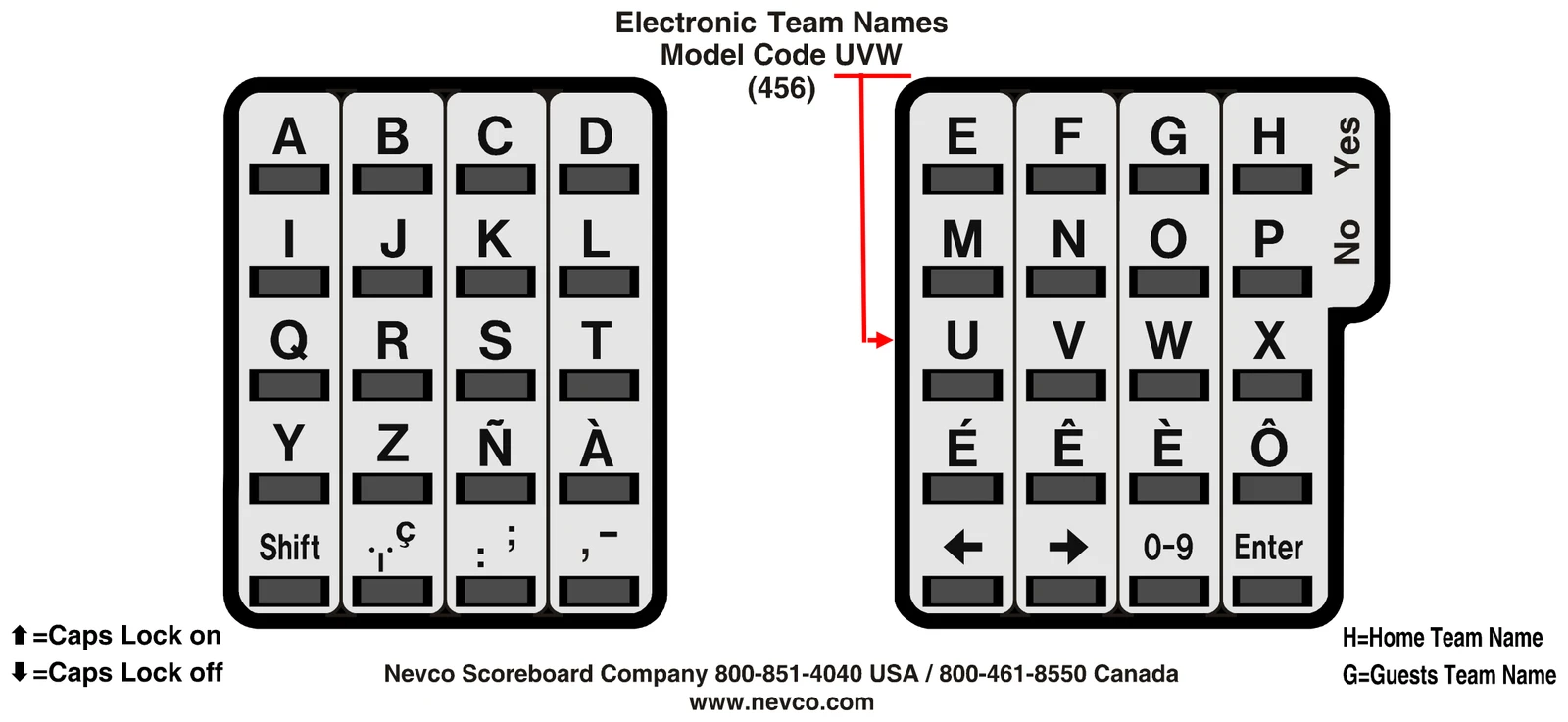
- All Models With Electronic Team Names
- PTF7 With Electronic Captions
- SD7-5 With Electronic Captions
- SD7-9 With Electronic Captions
When you turn the control on, the traveling display prompts you to "START WHERE TURNED OFF LAST?", "GO TO A BOOKMARK?", or "ENTER YOUR MODEL CODE". Answer YES, NO, or enter the 3 character model code on the overlay.
If a power failure happens during a game, press YES to resume from the point the power failed. The control can detect when power is failing and save the current data. (If the time was running when the power failed it will continue running as soon as power is restored).
A bookmark makes a quick efficient way to start a new game or practice drill. If a bookmark has been saved for this activity, answer YES to the bookmark question. The control will prompt for the "BOOKMARK #". Press the number of the bookmark you want to use (1 to 5). The control will load the configuration and data it had in it at the time the bookmark was saved.
To start a new game or procedure, be sure the proper overlay is installed on top of the control. Enter the 3 character model code located near the top center of the overlay.
The display on the control will show [ GUESTS ↑ G ] The "G" in "GUESTS" will be blinking to indicate where the curser is. The up arrow indicates that the caps lock is on; typing will yield upper case letters or the top character on keys with two characters. The "G" at the right indicates the team, Guest.
The Electronic Team Names will turn on.
The control will ask "DO YOU WANT TO OPERATE WIRELESS?"
If you answer NO:
The display on the control will show [ GUESTS ↑ G ] The "G" in "GUESTS" will be blinking to indicate where the curser is. The up arrow indicates that the caps lock is on; typing will yield upper case letters or the top character on keys with two characters. The "G" at the right indicates the team, Guest.
The Electronic Team Names will turn on.
If you answer YES:
The display on the control will prompt [ SELECT A GROUP ] then display the first group that is set up in the control. To see the next group name, press NO. When the desired group name is being displayed press YES.
The display on the control will show [ GUESTS ↑ G ] The "G" in "GUESTS" will be blinking to indicate where the curser is. The up arrow indicates that the caps lock is on; typing will yield upper case letters or the top character on keys with two characters. The "G" at the right indicates the team, Guest.
The Electronic Team Names will turn on.
Figure 3 Typical control display views
With the Electronic Team Names on and the display on the control showing [ GUESTS ↑ G ], you are ready to enter the Guest Team Name or press ENTER to use the default "GUESTS".
If you want to use a special Team Name, you can begin typing the name now. As soon as you press any key except ENTER, the word "GUESTS" is cleared and if the key is a displayable character it will be displayed in the first position on the control display.
With the Caps Lock indicator displaying an up arrow all alphabet keys will produce the upper case of the letter and all keys with 2 characters will produce the top character.
Press the shift key to change the Caps Lock indicator to a down arrow to access all lower case letters and the bottom character on keys that have two characters on them. Example [ GUESTS ↓ G ].
Each time a letter or punctuation key is pressed, the character is written to the display and the curser moves one position to the right until the twelfth and final position is reached.
For numbers, use the key with "0-9" on it. Each press of this key will advance through the numbers without advancing the curser. Once the desired number is displayed use the right arrow key to advance the curser.
Use the left arrow key to move the curser to the left for editing. It will clear the display as you move to the left.
Once the desired Team Name has been entered press ENTER to send it to the scoreboard.
The control will show [ NAME ACCEPTED ] briefly before moving to the HOME Team Name.
You are now ready to type the HOME Team Name, or press ENTER to accept the name as it appears on the control display.
Each time you press ENTER, the team name currently displayed on the control is accepted, and the opposing team name is displayed for editing.
When you are finished, turn the control off. The Team Names will blank after a few seconds. The names are stored in the scoreboard and will be displayed again when the scoreboard is turned on.
You are now ready to remove the Electronic Team Name overlay from the control and install the proper overlay for the scoreboard model and sport. Follow the instructions that came with the overlay.
| Key | Function |
|---|---|
| Shift | Press the Shift key to toggle the Caps Lock. An indicator on the control display indicates the Caps Lock status. An up arrow ↑ indicates upper case letters or the top character for keys with two characters on them; a down arrow ↓ indicates lower case or the bottom character. |
| ← | Use the ← key to move back one character at a time (for making corrections). It clears each character as it moves the curser to the left. |
| → | Use the → key to move the curser to the right one position at a time. It advances the curser to the next position after using the number key. It can be used to create a space between characters. |
| 0-9 | Use consecutive presses of the number key to advance to the number desired, then use the right arrow key to move the curser to the next position. |
| Enter | Press the Enter key to move the name displayed on the control to the scoreboard and to move on to the opposing team. |
| A | Verify the Caps Lock status, then press any letter key for the upper case ( ↑ ) or lower ( ↓ ) case of the letter. |
| ; : | Shift the Caps Lock indicator to the up arrow for the top character on keys with two characters. Shift the Caps Lock indicator to the down arrow for the bottom character. |
| H / Yes | Use the Yes key to respond to questions at start up. |
| P / No | Use the No key to respond to questions at start up. |
| Problem | Cause | Solution |
|---|---|---|
| I cannot get the Team Name to come on or to change. | No power to scoreboard. | Check all fuses and breakers. |
| I cannot get the Team Name to come on or to change. | Data from control not reaching scoreboard. | Check all cables and connections. |
| I cannot get the Team Name to come on or to change. | Wrong group name. (wireless operation) | Verify groups. (wireless operation) |
| I cannot change the Team Names with a second control while operating the scoreboard(s) with the main control. | Only one control can link to the scoreboard at a time. | The scoreboard and its control must be off before starting the Team Name control. |
| I see a strange pattern displayed after I enter the Model Code. | This is a test pattern. | This is normal and may last for up to 20 seconds. |
| When I use a long Team Name the characters are not full height. | The Team Name panel will use a smaller font to accommodate a long team name. If a name is too long, it may be cut off. | Use a shorter name or an abbreviation. Try the mascot or town name as an alternative. |
| Part of the last character of the team name is missing. | Certain wide characters, such as, 'W', 'M', 'N', and 'G' take up more space than normal and can sometimes push all or part of the last character(s) off the end. | Use a shorter name or an abbreviation. Try the mascot or town name as an alternative. |
| The "Shift" and "Y" keys do not work | The hand held time control switch is plugged into the control. | Turn the control off and unplug any hand held switches. Turn the control on and try again. |
| Horn is sounding while programming the ETN's | The module(s) in the offending (older) scoreboard(s) were not designed to be used during ETN programming. — Wireless operation | Create a group that has only the ETN scoreboard(s) in it. Use this group when programming the ETN's. |
| Horn is sounding while programming the ETN's | The module(s) in the offending (older) scoreboard(s) were not designed to be used during ETN programming. — Wireless operation | Update the modules in the older scoreboard(s). |
| Horn is sounding while programming the ETN's | The module(s) in the offending (older) scoreboard(s) were not designed to be used during ETN programming. — Wired operation | During ETN programming connect to the ETN scoreboard(s) only. This can be done by choosing the appropriate CSS input or dedicated scoreboard jack. |
| Horn is sounding while programming the ETN's | The module(s) in the offending (older) scoreboard(s) were not designed to be used during ETN programming. — Wired operation | During ETN programming supply power to the ETN scoreboard(s) only. |
| Horn is sounding while programming the ETN's | The module(s) in the offending (older) scoreboard(s) were not designed to be used during ETN programming. — Wired operation | Update the modules in the older scoreboard(s). |
| When I enter the model code, I get the message "MODEL CODE IS INVALID". | Control does not recognize this model code. Requires MPC-6 Rev. R3.1 or later or MPCW-6 Rev. R3.1 or later. Use model code 301 to check revision number. | Make sure you are using the correct control. Contact NEVCO for a new control or a revision update. |
If the problem persists please contact the Nevco Service Department.
800-851-4040
Q. Are my team names saved with a bookmark?
A. No, you can recall bookmarks without affecting the team names.
Q. Do I have to enter the home team name even if it does not change?
A. No, you can enter the Guest team name and press ENTER to accept it, and then when the control asks for the Home team name, press ENTER again to leave it unchanged.
Q. Can I control the brightness level of the Team Name displays?
A. The brightness level of the Team Name Displays automatically adjust to match the scoreboard.
Q. Can I change the Team Names while operating the scoreboard with another control?
A. No, only one control can be connected or linked to a scoreboard at one time.
Q. Can I center a short team name?
A. Yes, you can use spaces to force the name to the right.
Q. Can I use the same control for the scoreboard that I use to change the team names?
A. Yes, in order to change the Team Names the control must be an MPC-6 Rev R3.1 or later or an MPCW-6 Rev. R3.1 or later.
BEEPER: Confirms each key press and alerts operator when a special event such as time expired or an Entry Error has occurred.
DISPLAY: A 16 character display on the control prompts the operator for input and can monitor the scoreboard data.
ENTRY ERROR: A visual and audible warning that an invalid action was attempted. Its normal duration is 2 seconds however you may interrupt it and continue immediately.
MODEL CODE: A 3 character code located on the OVERLAY that when entered into the control, sets up the control for a particular scoreboard model and sport or special function.
OVERLAY: A flat plastic panel that fits over and around the keys on the control. Tabs at the top and bottom hold it in place. Each overlay provides the proper labeling for each key and a three character Model Code. A brief set of operating instructions is printed on the back of each overlay; you may make copies if you desire. When you want to change to a different sport, install the correct overlay and enter the new Model Code.
WIRELESS GROUP: One or more scoreboards that operate together wirelessly with a single control.
| Team | Team Name |
|---|---|